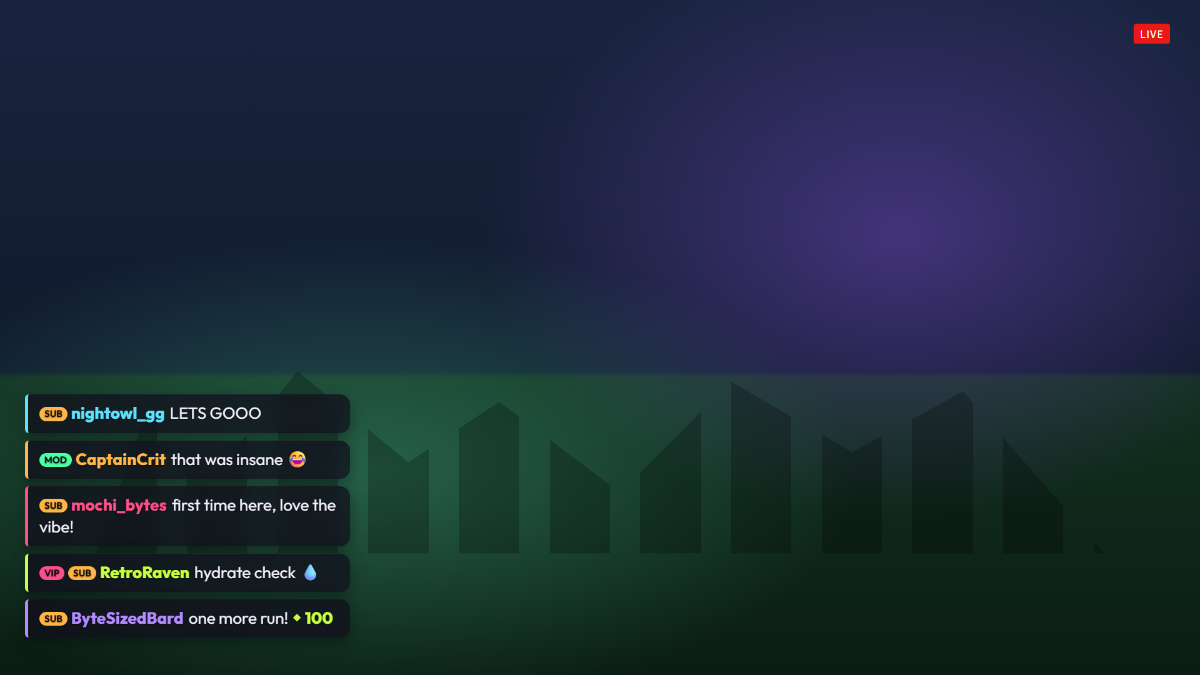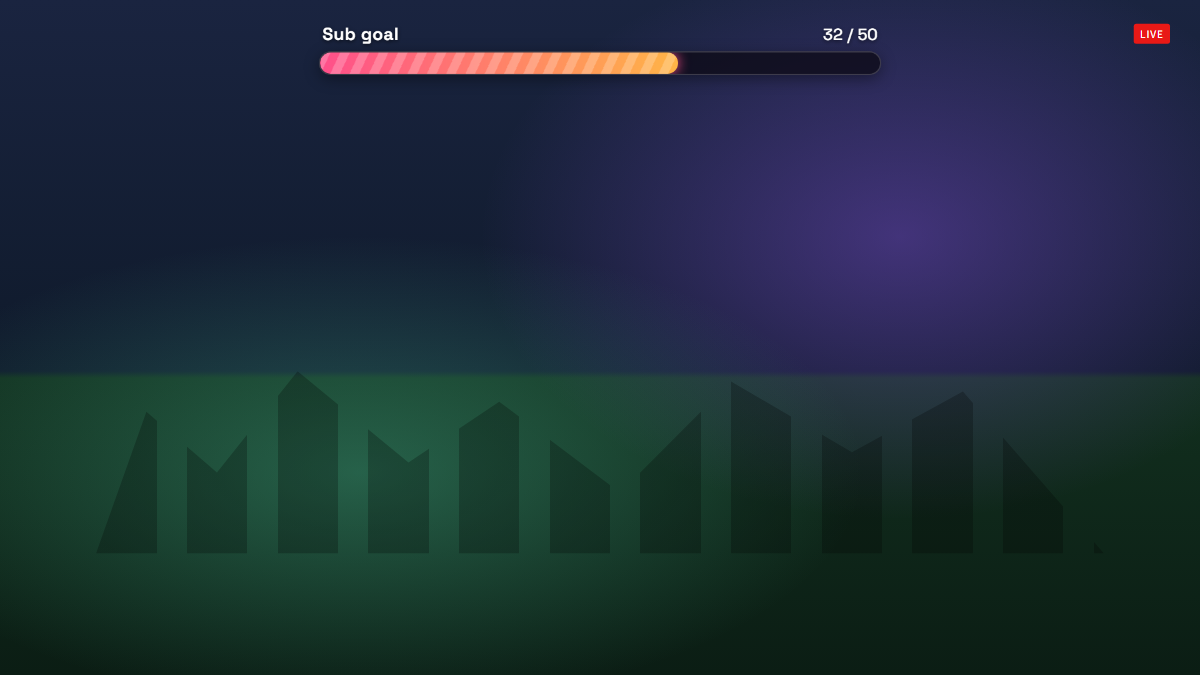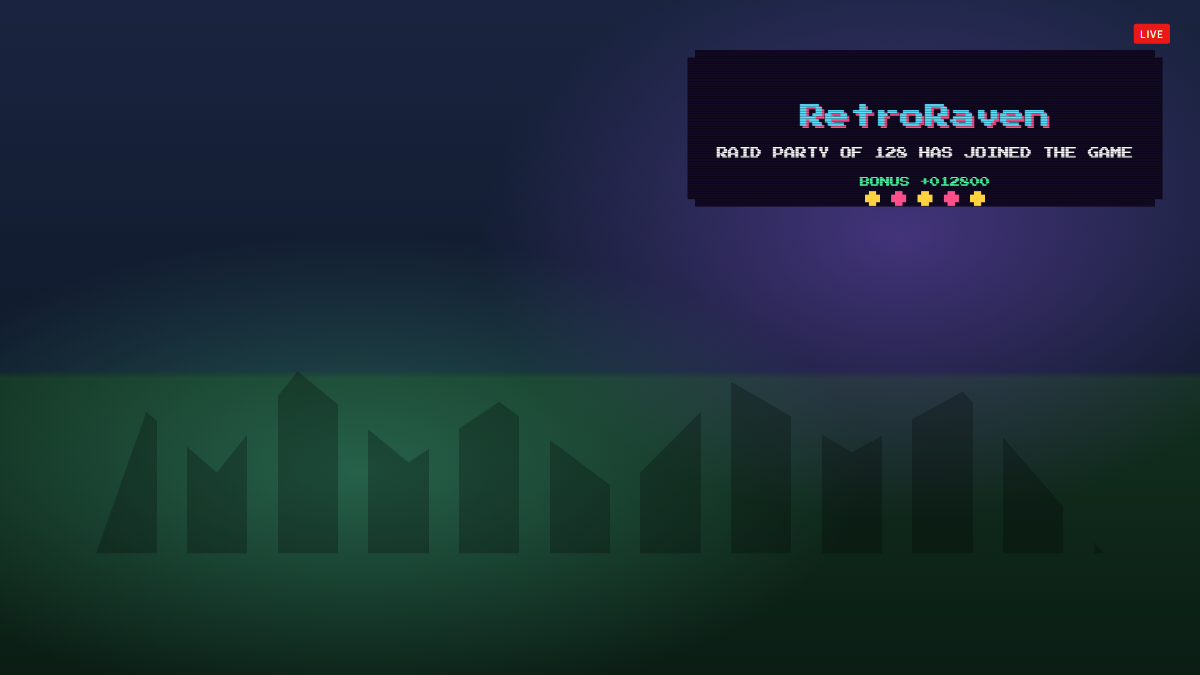
Neon Webcam Frame
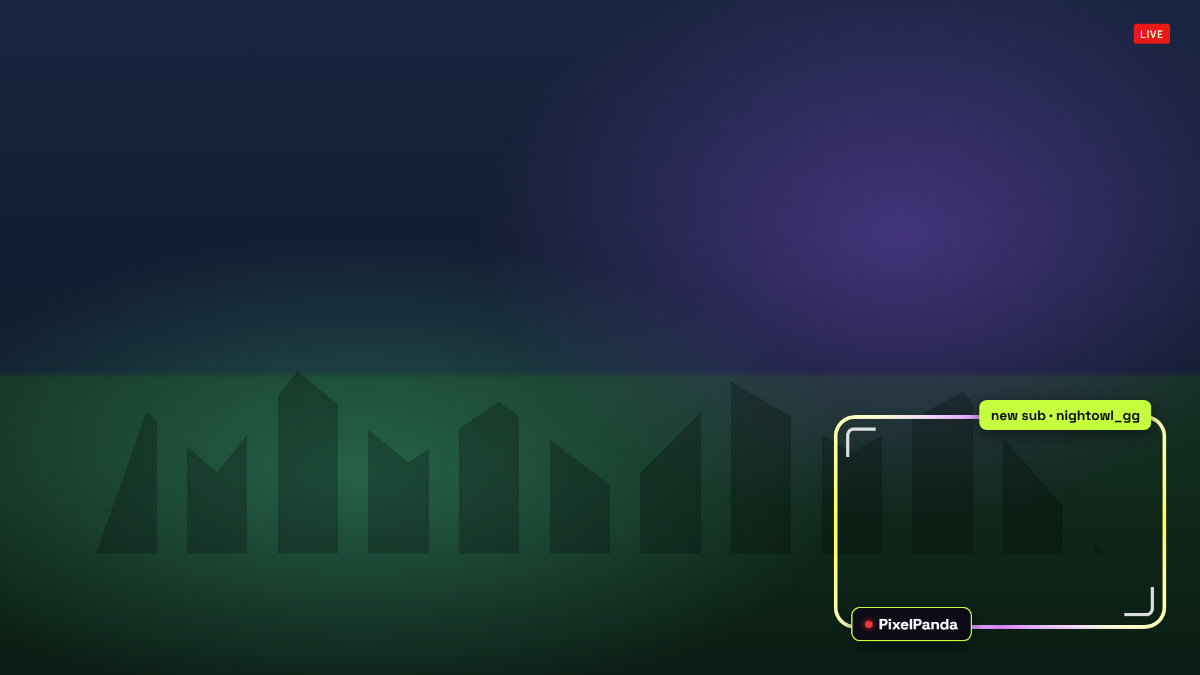
Animated gradient facecam border with a name tag that flashes on subs, bits and raids.
A webcam frame overlay for Twitch and OBS
Neon Webcam Frame is a free webcam overlay that wraps your facecam in a slowly rotating neon gradient border with rounded corners and a live name tag. The inside is fully transparent, so you place it over your camera source and it just works.
Set the exact position and size in pixels so it lines up with your camera, pick two colors for the gradient, and change the corner radius and border thickness. When someone subscribes, gifts, cheers or raids, the border speeds up and glows while a small label pops up with their name.
- Rotating two-color gradient border
- Name tag with a live dot
- Flashes and shows a label on subs, bits and raids
- Position, size, radius and border width from the URL
- Transparent inside for your camera
- Works with any webcam or capture card
Add Neon Webcam Frame to OBS in under a minute
- Copy your overlay URL.
Replace YOUR_CHANNEL with your Twitch username:
https://www.overlaify.com/overlays/webcam-frame?channel=YOUR_CHANNEL - Add a Browser source.
In OBS Studio, click + under Sources, choose Browser and name it “Neon Webcam Frame”.
- Paste the URL and set the size.
Paste the URL, then set Width to
1920and Height to1080. Leave custom CSS empty — the background is already transparent. - Test it before you go live.
Add
&test=1to the URL to fire simulated events, then remove it once it looks right. Tick “Control audio via OBS” if you want the alert sounds on their own mixer track.
Subs, gifted subs, bits and raids come from Twitch chat with no login. Place the browser source above your camera in the OBS source list. Streamlabs Desktop, Meld and Twitch Studio work too — add it wherever they accept a browser source or URL.
URL options
| Option | Example | What it does |
|---|---|---|
x | &x=1380 | Left edge of the frame in pixels (1920 wide canvas). |
y | &y=700 | Top edge of the frame in pixels (1080 tall canvas). |
w | &w=480 | Frame width in pixels. Match your camera source. |
h | &h=320 | Frame height in pixels. |
color | &color=%23c6ff3d | First gradient color (URL-encode # as %23). |
color2 | &color2=%239b5cff | Second gradient color. |
radius | &radius=28 | Corner radius in pixels. 0 for square corners. |
border | &border=6 | Border thickness in pixels. |
name | &name=YourName | Name tag text. Defaults to your channel; 0 hides it. |
alerts | &alerts=0 | Set to 0 to turn off the event flash. |
volume | &volume=0.25 | Sound volume from 0 to 1. |
mute | &mute=1 | Turn sounds off. |
Want a different layout, font or animation? Remix it with AI — describe the change in plain words and get your own version with a new OBS URL.
Make Neon Webcam Frame yours
Use it as-is for free, or open it in the AI editor and tell it what to change.